Sep 5, 2025
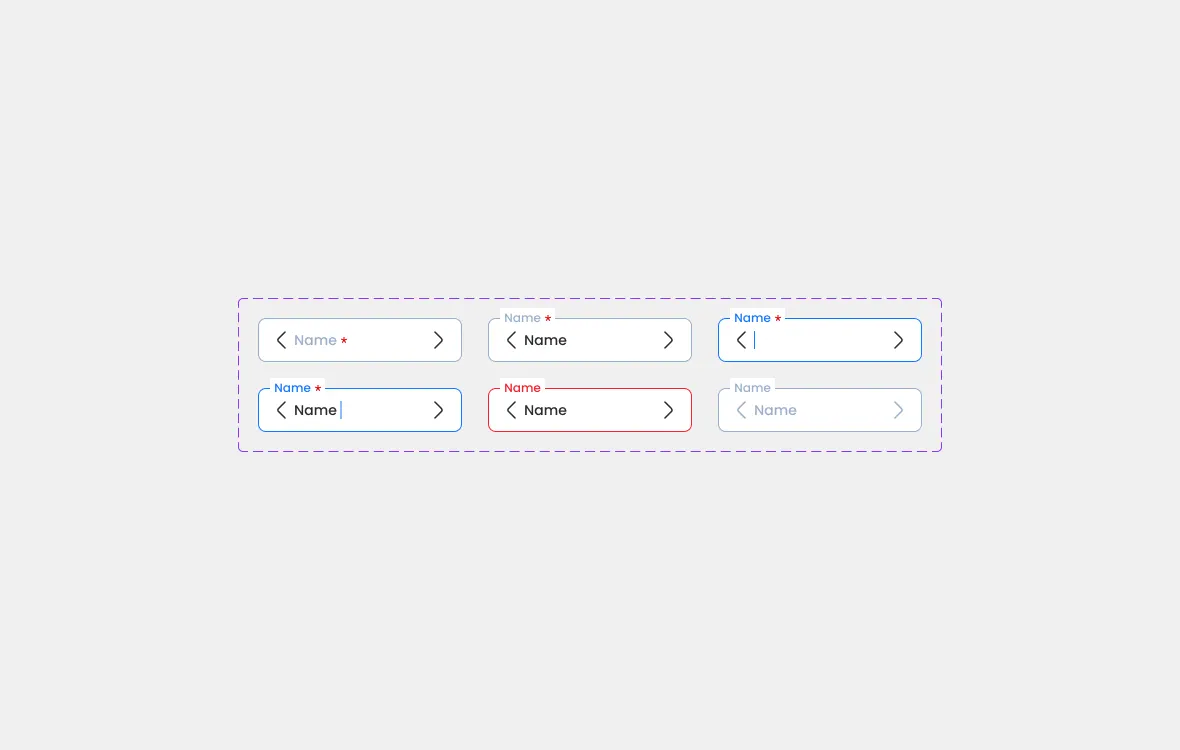
In this design, we use the floating label approach. Here’s how it behaves:
Default State

In the default state, the input field is displayed with only a placeholderinside it. There is no label visible yet. This keeps the design clean and minimal when the user first sees the form.
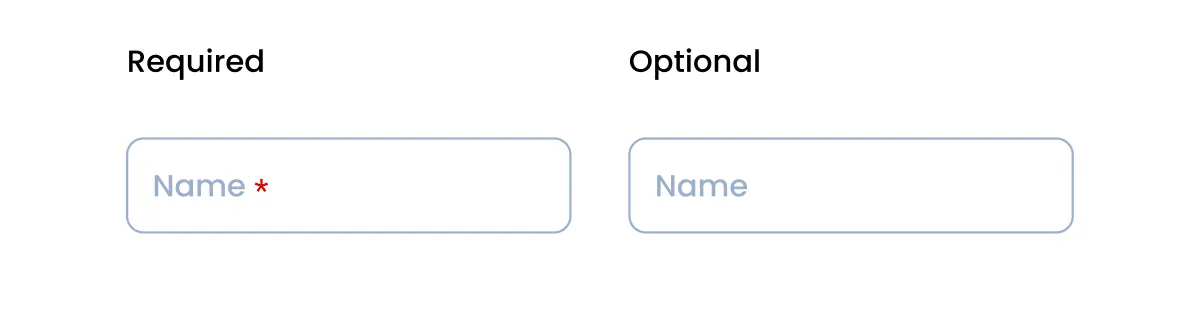
If the field is required, the placeholder is followed by a red asterisk (
*) to indicate that it must be filled in.If the field is optional, the placeholder is shown in a lighter gray, without any asterisk.
The border remains in a neutral gray color, signaling that the field is idle and not focused.
👉 Example (as shown in the image):
Must Be Filled →
Placeholder *
Optional → Placeholder
Focused/Typing State

When the input is clicked or typing begins, the label appears above the field.
The border changes to blue to indicate focus.
The placeholder remains visible if the field is still empty.
Error State

If the input is invalid (e.g., required but left empty), the border turns red.
The label and text inside the field also adapt to the error state.
Disabled State

The input is not usable.
The border, text, and label appear in muted gray.
This visually indicates that the field is disabled.
Why Floating Labels?
Space-saving — the placeholder doubles as a label.
Avoids confusion — users can still see what the field means even after typing.
Clear visual feedback — focus, error, and disabled states are easier to understand through color and label movement.
✨ With this simple interaction, forms become more user-friendly and informative.