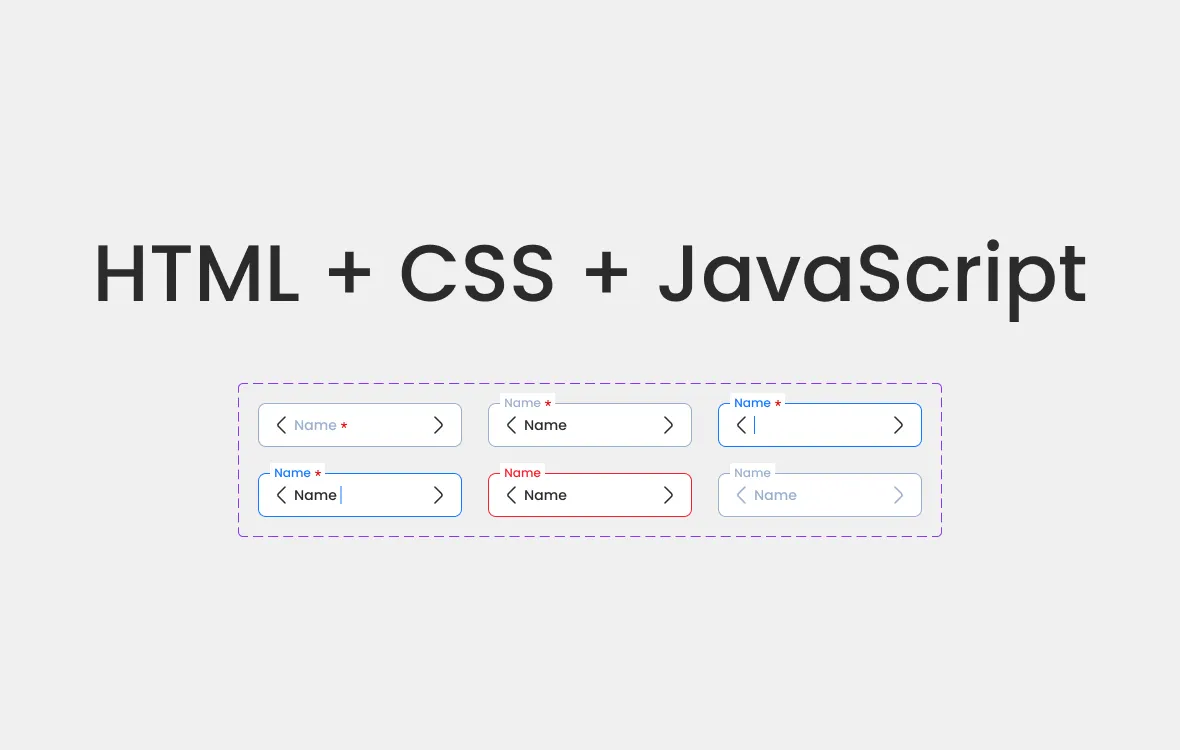
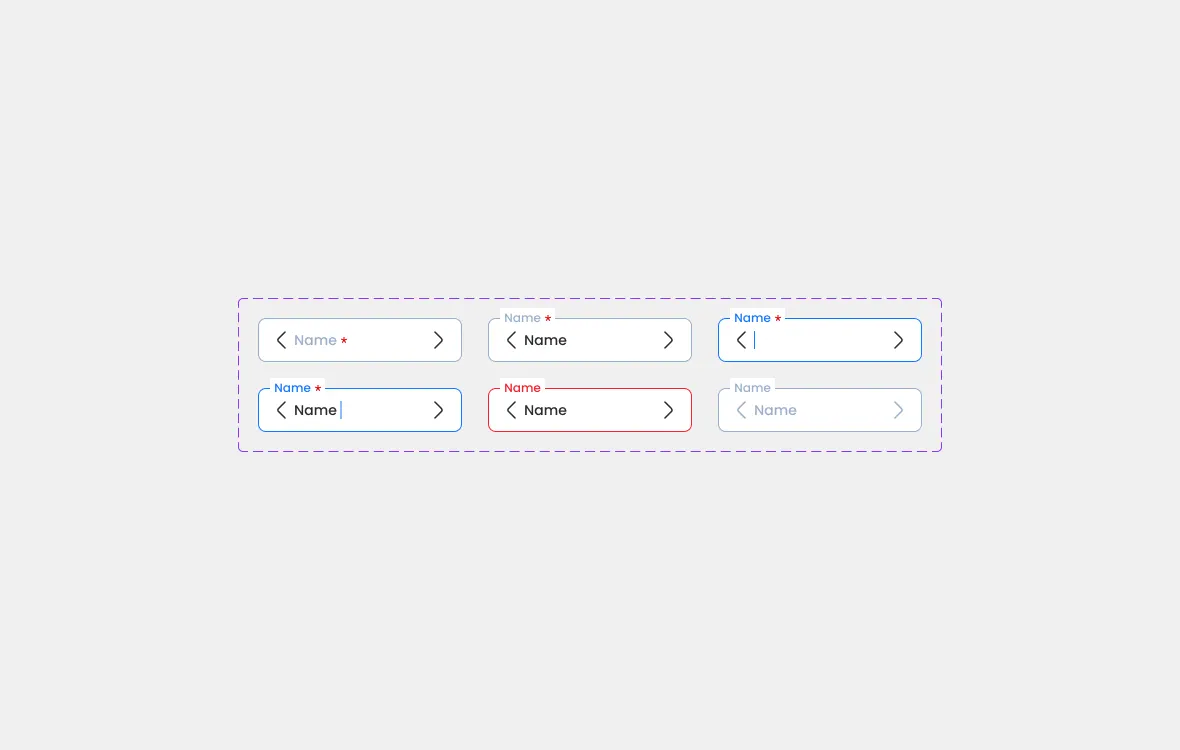
In this article, we’ll build a simple yet effective floating label input using plain HTML + CSS. We’ll cover the four most important states: Default, Focus, Error, and Disabled.
Default State
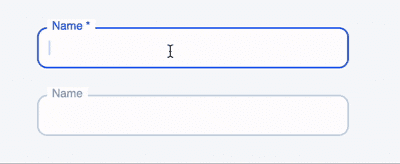
So the flow is:
When focused → blue label (for active feedback).
But if the user clicks outside (blur) → label returns to gray, even if the field has content.
This means we need a little JavaScript to add a class when the input is focused/blurred.
HTML Code for Default State
<!DOCTYPE html>
<html>
  <head>
    <!--<title>Hello, World!</title>-->
    <link rel="stylesheet" href="styles.css" />
  </head>
  <body>
    <!-- required-->
    <div class="field">
      <input type="text" placeholder=" " required>
      <label>Name *</label>
    </div>

    <!-- opsional-->
    <div class="field">
      <input type="text" placeholder=" ">
      <label>Name</label>
    </div>
  <script src="script.js"></script>
  </body>
</html>
CSS Code for Default State (Create in the style.css file)
body {
font-family: sans-serif;
background: #f8f9fa;
padding: 40px;
}
.field {
position: relative;
margin-bottom: 2rem;
width: 350px;
}
.field input {
width: 100%;
padding: 14px 12px;
border: 2px solid #cbd5e1;
border-radius: 12px;
font-size: 16px;
outline: none;
transition: 0.2s;
}
.field label {
position: absolute;
top: -10px;
left: 12px;
font-size: 14px;
color: #94a3b8;
background: #fff;
padding: 0 6px;
pointer-events: none;
transition: 0.2s;
}
.field.active input {
border-color: #2563eb;
}
.field.active label {
color: #2563eb;
}JavaScript Code for Default State (Create in the script.js file)
  const fields = document.querySelectorAll('.field input');

  fields.forEach(input => {
    input.addEventListener('focus', () => {
      input.parentElement.classList.add('active');
    });

    input.addEventListener('blur', () => {
      input.parentElement.classList.remove('active');
    });
  });
Error State
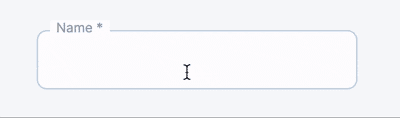
So the flow is:
Click on the input (blue label), don’t type anything → click outside → an error will appear (border + red label).
Click again (focus) — the label will remain red (the error will remain visible) until you type something; once you start typing, the error message will disappear and the color will return to normal.
HTML Code for Error State
<!DOCTYPE html>
<html lang="en">
<head>
  <meta charset="UTF-8">
  <!--<title>Error Input Blur</title>-->
  <link rel="stylesheet" href="styles.css">
</head>
<body>
    <div class="field" id="field-name">
      <input id="name" type="text" placeholder=" " aria-describedby="err-name" />
      <label for="name">Name *</label>
    <div id="err-name" class="error-message" aria-live="polite">This field is required.</div>
  </div>

  <script src="script.js"></script>
</body>
</html>
CSS Code for Error State (Create in the style.css file)
:root{
--gray-border: #cbd5e1;
--muted: #94a3b8;
--blue: #2563eb;
--red: #ef4444;
--bg: #f8f9fa;
}
body{
font-family: Inter, system-ui, -apple-system, "Segoe UI", Roboto, "Helvetica Neue", Arial;
background: var(--bg);
padding: 40px;
}
.field {
position: relative;
margin-bottom: 2rem;
width: 350px;
}
.field input {
width: 100%;
padding: 18px 18px;
border: 2px solid var(--gray-border);
border-radius: 12px;
font-size: 28px;
line-height: 1;
color: #111827;
background: #fff;
outline: none;
transition: border-color .15s ease, box-shadow .12s ease;
}
.field label {
position: absolute;
top: -12px;
left: 16px;
font-size: 16px;
color: var(--muted);
background: #fff;
padding: 0 8px;
pointer-events: none;
transition: color .12s ease;
}
.field.active input {
border-color: var(--blue);
}
.field.active label {
color: var(--blue);
}
.field.error input {
border-color: var(--red);
box-shadow: 0 0 0 3px rgba(239,68,68,0.06);
}
.field.error label,
.field.error.active label {
color: var(--red);
}
.error-message {
display: none;
position: absolute;
left: 12px;
bottom: -22px;
font-size: 13px;
color: var(--red);
}
.field.error .error-message {
display: block;
}JavaScript Code for Default State (Create in the script.js file)
const field = document.getElementById('field-name');
const input = field.querySelector('input');
const err = field.querySelector('.error-message');
input.addEventListener('focus', () => {
field.classList.add('active');
});
input.addEventListener('blur', () => {
field.classList.remove('active');
if (input.value.trim() === '') {
field.classList.add('error');
} else {
field.classList.remove('error');
}
});
input.addEventListener('input', () => {
if (input.value.trim() !== '') {
field.classList.remove('error');
}
});Disabled State
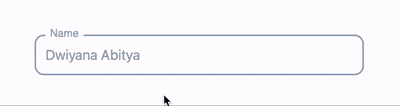
Sometimes fields are unavailable. In the disabled state:
The input background is gray.
The border and label are muted gray.
The field cannot be clicked or typed in.
HTML Code for Disabled State
<!DOCTYPE html>
<html lang="en">
<head>
  <meta charset="UTF-8">
  <title>Disabled Field Example</title>
  <link rel="stylesheet" href="style.css">
</head>
<body>
  <div class="field disabled">
    <label for="name">Name</label>
    <input type="text" id="name" value="Dwiyana Abitya" disabled>
  </div>
</body>
</html>
CSS Code for Disabled State (Create in the style.css file)
body {
font-family: sans-serif;
background: #fff;
padding: 40px;
}
.field {
position: relative;
display: inline-block;
width: 400px;
}
.field label {
position: absolute;
top: -10px;
left: 14px;
padding: 0 6px;
font-size: 14px;
color: #94a3b8;
background: #fff;
}
.field input {
width: 100%;
padding: 14px 12px;
border: 2px solid #94a3b8;
border-radius: 12px;
font-size: 18px;
color: #94a3b8;
background: #fff;
}
.field input:disabled {
cursor: not-allowed;
}And that’s it! With a small amount of CSS, you now have clean and user-friendly inputs that guide users through every state.